
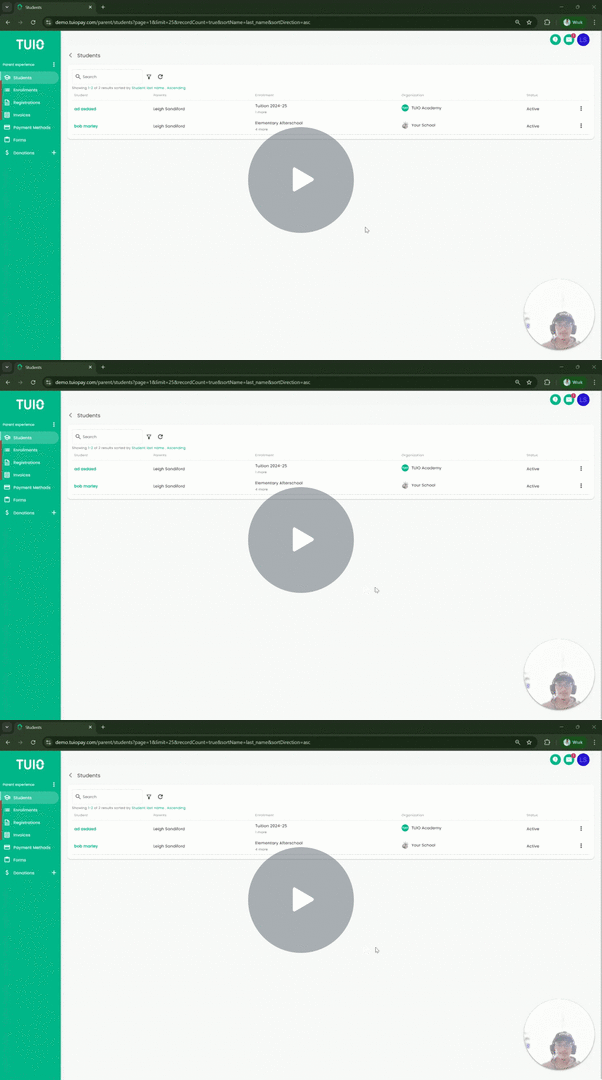
This video shows an earlier layout. Check the current enrollment details and confirmation before making a change.
Further Reading
To change the payment method linked to an enrollment, when the Change option is available:
- Clicking on the Enrollments tab.
- Clicking on the Enrollment number you would like to change payment method for.
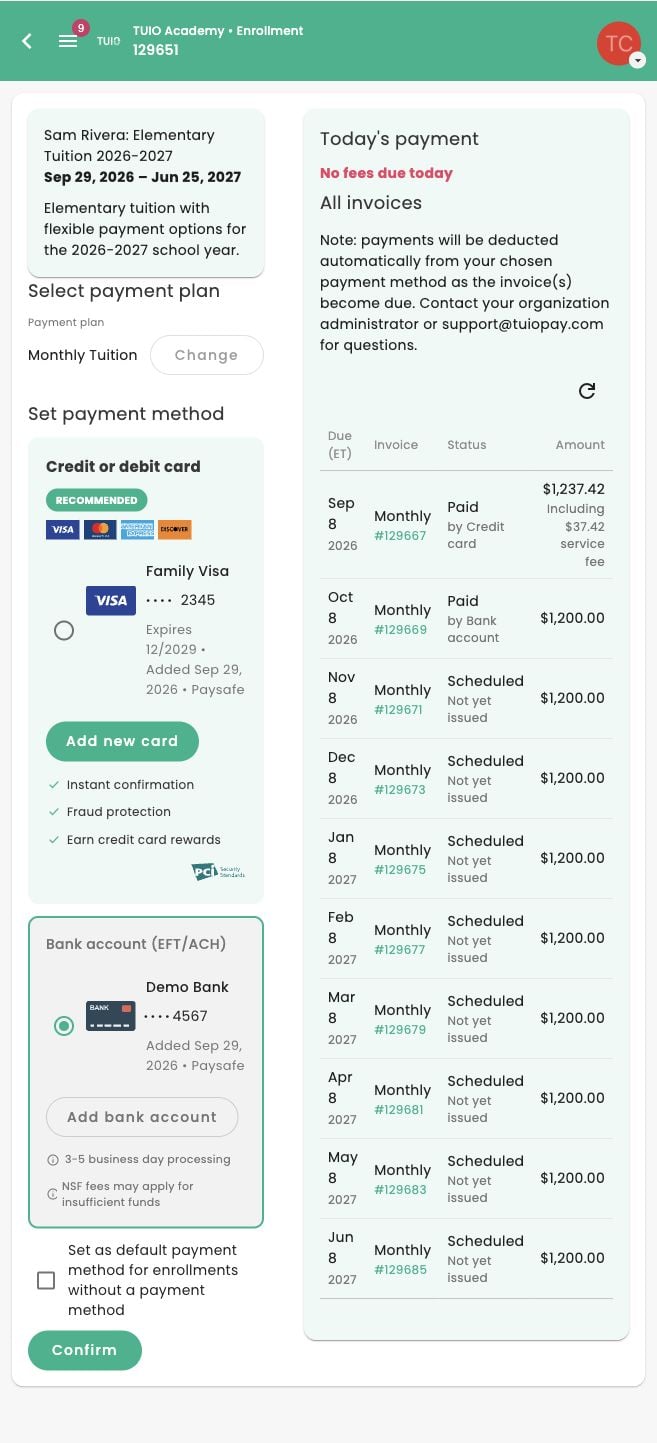
- Once you're on the screen for that given program, click Change on the side of your screen and select the correct payment method.
- Click Confirm at the bottom of the page - otherwise your changes will not be saved!
You can click the checkbox for 'Set as Default Payment Method for Enrollments without a Payment Method' to link payment to all applicable enrollments in one step, once you click Confirm.
Check the scope before confirming
Saving a payment method in your account, linking it to an enrollment, and paying one invoice are separate actions. Review the enrollment and any payment information shown before clicking Confirm. Only select the default-payment-method checkbox if you intend to apply the method to the other eligible enrollments described by that option.
For a single invoice that offers Pay now, follow How to pay an invoice with Pay now. Changing the enrollment method does not establish that an existing payment has failed or stopped. If a payment is already in progress, check its history before attempting another payment.
If Change is unavailable or you need help with an overdue invoice, contact your school. See Has my payment processed? for status guidance.
Current payment-method selection
The enrollment screen shows the selected method, optional default-method checkbox and Confirm button. Review Today's payment and the invoice list before confirming.
Assign payment methods from your saved methods
The full enrollment page and the Assign payment methods dialog have different controls. Follow the steps for the screen you opened, and review the enrollment scope and payment information before confirming or saving.
- Open Payment methods and select Assign payment methods.
- Review the payment method on each enrollment row. A method marked Preselected. Save to confirm. has not yet been assigned. You can select another available method or add a card or bank account from this dialog.
- Check Balance and Due now, then select View breakdown to review Today’s payment and All invoices.
- If a row says No payment plan selected, use Set up to complete that enrollment’s setup.
- Choose Save when the enrollment selections are ready. Saving can start eligible due or overdue payments, so review the payment information first. Choose Cancel to leave the assignments unchanged.
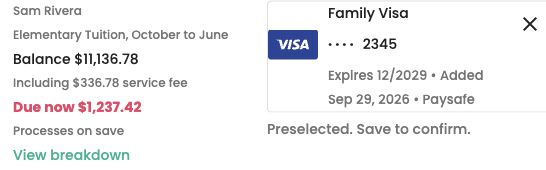
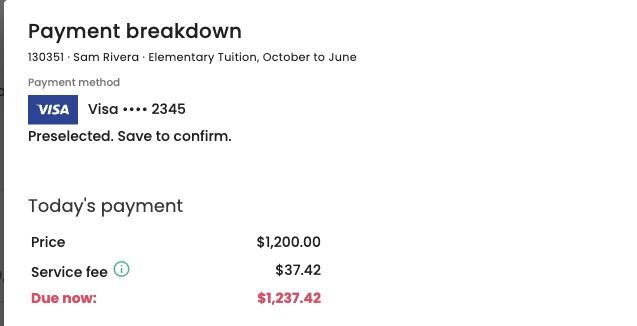
An invoice with a payment already in progress is excluded from the balance shown in this dialog. Check its status before trying to pay it again. If your account has a credit or the amount does not match what you expect, contact your school before saving.