The Schedule page shows published class events for students linked to your parent account.
- Sign in to TUIO and open Schedule from the navigation menu.
- Use the Students selector to choose your child.
- Move through the calendar to the dates you need.
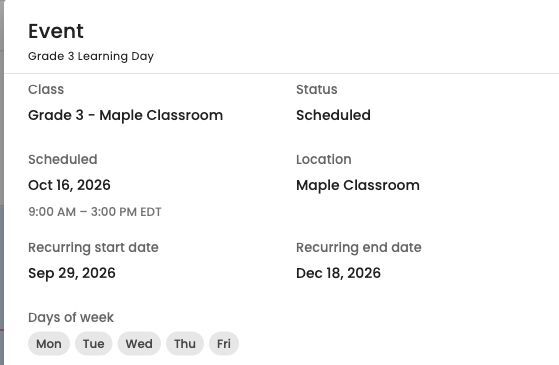
- Select an event to view its date, time, class and any location or notes supplied by the school.
- Select Done to return to the calendar. Use Print if you need a paper copy of the displayed schedule.
Event times follow the student's school organization timezone. Check the timezone shown when your device is set to a different location.
If your child or an event is missing
The school controls class placement, publishing and event changes. A student without published classes may not have a schedule available yet.
Confirm that you are using the account linked to your child and that you selected the correct student and dates. If the schedule is still missing or incorrect, contact the school with the student's name and expected class or event.
View event details
Select a calendar event to see its class, status, date, time, location and any notes supplied by your school.