
Use Communications in TUIO to read messages from your school.
- Sign in and open Communications from the navigation menu.
- Select the conversation you want to read. Check unread conversations for new messages.
- Read the conversation and any attachments.
- If a message box is available, type your reply and select the send icon.
Before replying, read the visibility notice near the message box. The school controls who can participate and whether parents can see messages from other parents. Do not assume every conversation is private between you and one staff member.
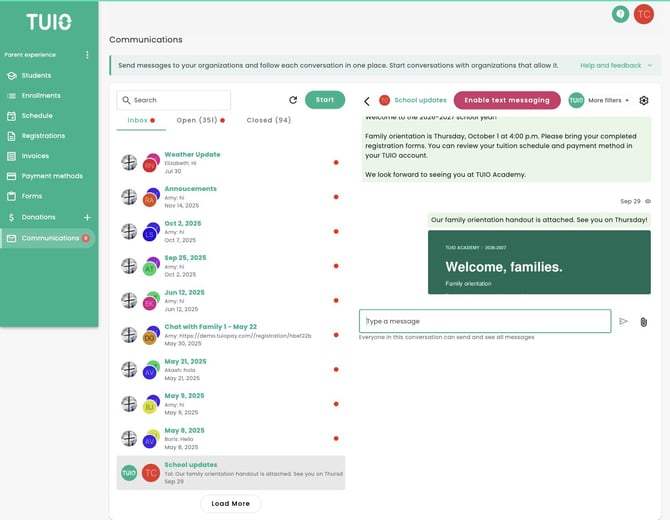
Open a conversation, read the visibility notice below the message box, and reply when the school allows it.
Why can I read a conversation but not reply?
Some conversations are announcements. If TUIO displays Only staff can send messages in this conversation, parents cannot reply there. A closed conversation also does not accept new messages.
Contact the school through its usual contact method if an announcement needs a response or you need a separate conversation.
If a message is missing
Check that you are signed in with the parent account the school added to the conversation. Ask the school to confirm that the correct account is included. For a technical problem, use Help and feedback on the Communications page.