
Your school creates tax receipts and payment statements in TUIO. Once a receipt is available to your account, you can download it from the parent portal.
- Sign in to TUIO.
- Open Invoices, then select Tax receipts.
- Find the receipt for the correct school, student and period. Use Search or the Student filter if needed.
- Select Download on the receipt card.
- Open the PDF and check the student's name, school, amount and payment period before submitting or saving it.
The PDF shows the payment period on the receipt and its transaction history page. The period is labelled in Eastern Time (ET).
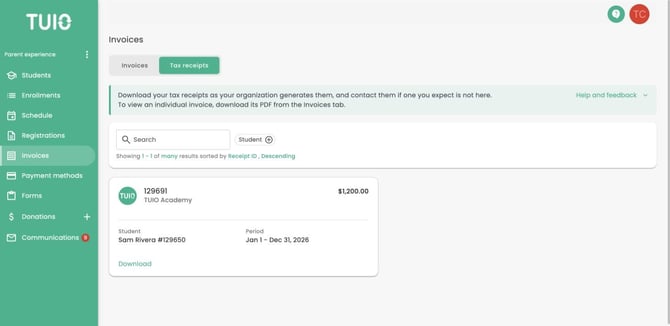
Example from TUIO Academy in demo. The Tax receipts tab shows the student, period and Download button.
If the tab or receipt is missing
If you do not see Tax receipts, ask the school whether this feature is available for your account. If the tab is visible but the receipt you need is missing, ask the school whether it has generated the receipt for the correct student and dates.
Contact the school if a name, amount or payment period needs to be corrected. TUIO support cannot decide which payments your school should include in a receipt.
Is this the same as an invoice PDF?
An invoice describes billed charges. A school-issued receipt or payment statement documents the payments included by the school for the selected period. Use the document requested by your benefits provider, accountant or other recipient.
If a dependent care FSA provider asks for particular dates or information, send those requirements to the school. For more information, see Tax Receipts FAQ.