
A school may ask you to approve an added invoice or a change to an existing invoice. Review the amount, due date and change before choosing an action.
Approve or decline an invoice
- Open Invoices in your parent account.
- Find the invoice awaiting approval and review its details.
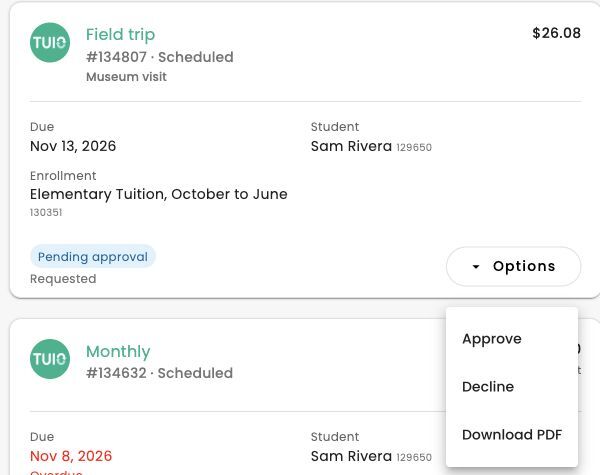
- Open its Options menu.
- Select Approve to approve it. This action applies the approval directly.
- To decline instead, select Decline, enter the required reason and choose Save.
For an invoice marked Pending approval, open Options to find Approve and Decline, as shown below.
If an enrollment shows Review changes, you can also open that link to review its pending invoice changes.
Approval does not mean the bank has confirmed a payment. Check the invoice and payment status afterward. If you plan to pay by cash or cheque, contact your school so it can record the payment against the correct invoice. If you disagree with a charge or cannot see the expected action, contact your school.
Video walkthrough
The video may show earlier screens. Follow the written steps above for the current controls.

Approve an invoice you previously declined
If you and the school have resolved the concern, you can open the declined invoice and select Approve from its Options menu. Review the amount and due date first. Contact your school if the expected approval option is unavailable.
When reviewing several changes together, TUIO explains why an invoice cannot be approved instead of offering a selection checkbox for that invoice. Review each reason with your school.